
Backing up your photos and files is one of the smartest things you can do to protect your digital memories and important documents. Whether it’s cherished family photos, work files, or personal records, having a backup ensures that you won’t lose everything if your computer crashes, your phone gets lost, or a virus strikes. In this guide, we’ll walk you through why backups are essential, different backup methods, and practical steps to keep your data safe.
Why Backing Up Your Photos and Files Matters
Technology is reliable but not infallible. Devices can fail, get stolen, or be damaged by accidents like spills or drops. Without a backup, you risk losing years of photos, important work documents, and other vital information permanently.
Here are some common reasons why backups are necessary:
– Hard drive failures
– Accidental deletion
– Theft or loss of device
– Malware and ransomware attacks
– Software corruption or bugs
– Natural disasters like fire or flood
Having a reliable backup plan helps you recover quickly and avoids the stress of losing treasured memories or critical files.
Types of Backup Solutions
There are several ways to back up your files. Choosing the right method depends on your needs, budget, and technical comfort level.
1. External Hard Drives or SSDs
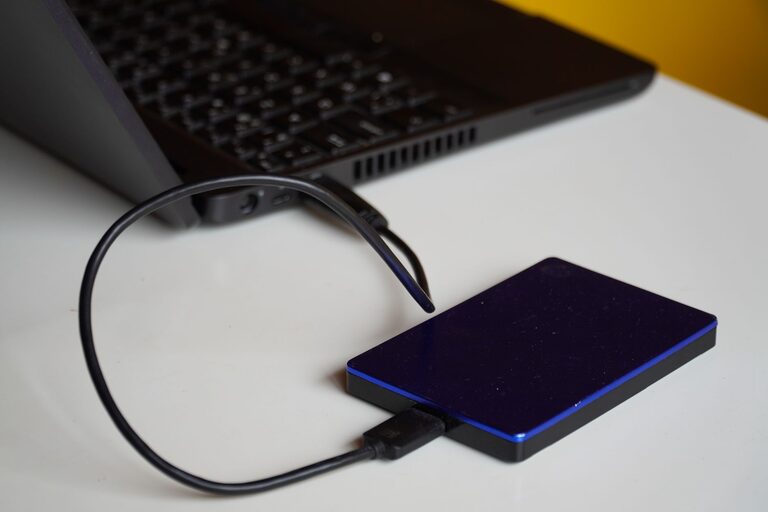
Using an external hard drive is a popular and affordable option. You can manually copy your files or use backup software to automate the process.
Pros:
– One-time cost for the drive
– Fast transfer speeds
– Access your data without internet
Cons:
– Risk of physical damage or loss
– Needs to be regularly updated
– Must be connected to your computer
2. Cloud Backup Services
Cloud backups store your files on secure internet servers. Examples include Google Drive, Dropbox, Microsoft OneDrive, and specialized backup services like Backblaze or Carbonite.
Pros:
– Automatic syncing
– Accessible from any device with internet
– Offsite protection against physical damage
Cons:
– Monthly or yearly fees for larger storage
– Requires a stable internet connection
– Potential privacy concerns (choose reputable providers)
3. Network Attached Storage (NAS)
NAS devices are like personal cloud servers that connect to your home network. They allow multiple devices to back up to one centralized place.
Pros:
– Large storage capacity
– Accessible on your local network
– Can configure automatic backups
Cons:
– More expensive and complex setup
– Requires knowledge to maintain security
– Not offsite unless paired with cloud backup
4. USB Flash Drives
Good for quick backups of small amounts of data.
Pros:
– Portable and inexpensive
– Easy to use
Cons:
– Limited storage
– Not suitable for large backups
– Can be lost or damaged easily
Best Practices for Backing Up Your Photos and Files
1. Follow the 3-2-1 Rule
A widely recommended backup strategy is the 3-2-1 rule:
– Keep at least three copies of your data (original + 2 backups)
– Store the copies on two different types of media (e.g., external drive and cloud)
– Keep one copy offsite (e.g., cloud backup or a drive at another location)
This approach minimizes risk and ensures multiple layers of protection.
2. Automate Your Backups
Setting up automatic backups reduces the chance you’ll forget to back up regularly. Many cloud backup services and backup software on computers allow scheduling daily or weekly backups.
3. Organize Your Files
Create a clear folder structure so your backups are easy to navigate. For photos, consider organizing by year, event, or location.
4. Check Your Backups Periodically
It’s important to verify that your backups are working correctly. Try restoring some files every few months to make sure they open properly.
5. Protect Your Backup Devices
Store external drives in a safe place, and use strong passwords or encryption if your backup service supports it. For portable drives, avoid carrying them everywhere to reduce loss risk.
Step-by-Step Guide to Backing Up Photos and Files
Backing Up to an External Drive (Windows and Mac)
- **Purchase or use an existing external hard drive or SSD** with enough storage space.
- **Connect the drive to your computer** via USB.
- On **Windows**:
– Use built-in Backup and Restore or File History feature.
– Go to Settings > Update & Security > Backup and select your external drive.
– Choose files and folders you want to back up.
– Set backup schedule or run manually.
- On **Mac**:
– Set up Time Machine backup.
– Go to System Preferences > Time Machine.
– Select the external drive as your backup disk.
– Time Machine will automatically back up your files regularly.
Backing Up to the Cloud
- **Choose a cloud backup provider** based on your storage needs and budget.
- Create an account and install the provider’s app on your computer or mobile device.
- Select the folders or photos you want to back up.
- Enable the automatic sync or backup feature for convenience.
- Regularly log in to confirm backups are up-to-date.
- Purchase a NAS device compatible with your home network.
- Connect it to your router and power it on.
- Use the NAS software to configure user access and storage settings.
- Set up backup tasks on your computer to save files to the NAS automatically.
Using a NAS Device
Tips for Backing Up Mobile Phone Photos
– Use cloud services like Google Photos, iCloud, or OneDrive set to automatically upload your photos.
– Regularly transfer photos from your phone to a computer or external drive.
– Delete unnecessary photos to save storage space.
Final Thoughts
Backing up your photos and files is essential for peace of mind. By choosing the right backup method and maintaining a consistent schedule, you can safeguard your important data against unexpected loss. Remember the 3-2-1 backup rule and automate your process as much as possible to make backups hassle-free. With a little effort today, you’ll protect your digital memories for years to come.